
How to Set Up OpenClaw in 2026: Install, Onboard & Connect Telegram (Step by Step)
Set up OpenClaw in 2026: install on Mac, Windows or Linux, run onboarding, keep the gateway running and connect Telegram, with security defaults to fix first.
Last verified: 15 October 2026, against the official OpenClaw docs (docs.openclaw.ai). OpenClaw ships updates often, so check the commands against the docs before you run them.
OpenClaw gives you your own AI assistant that you can message from Telegram, WhatsApp, Discord, Slack and other chat apps, running on your own computer or server. Getting it installed takes a few minutes. Getting it installed safely takes a little more care. This guide walks through both, step by step, using the current official flow.
What OpenClaw Is (in 60 Seconds)
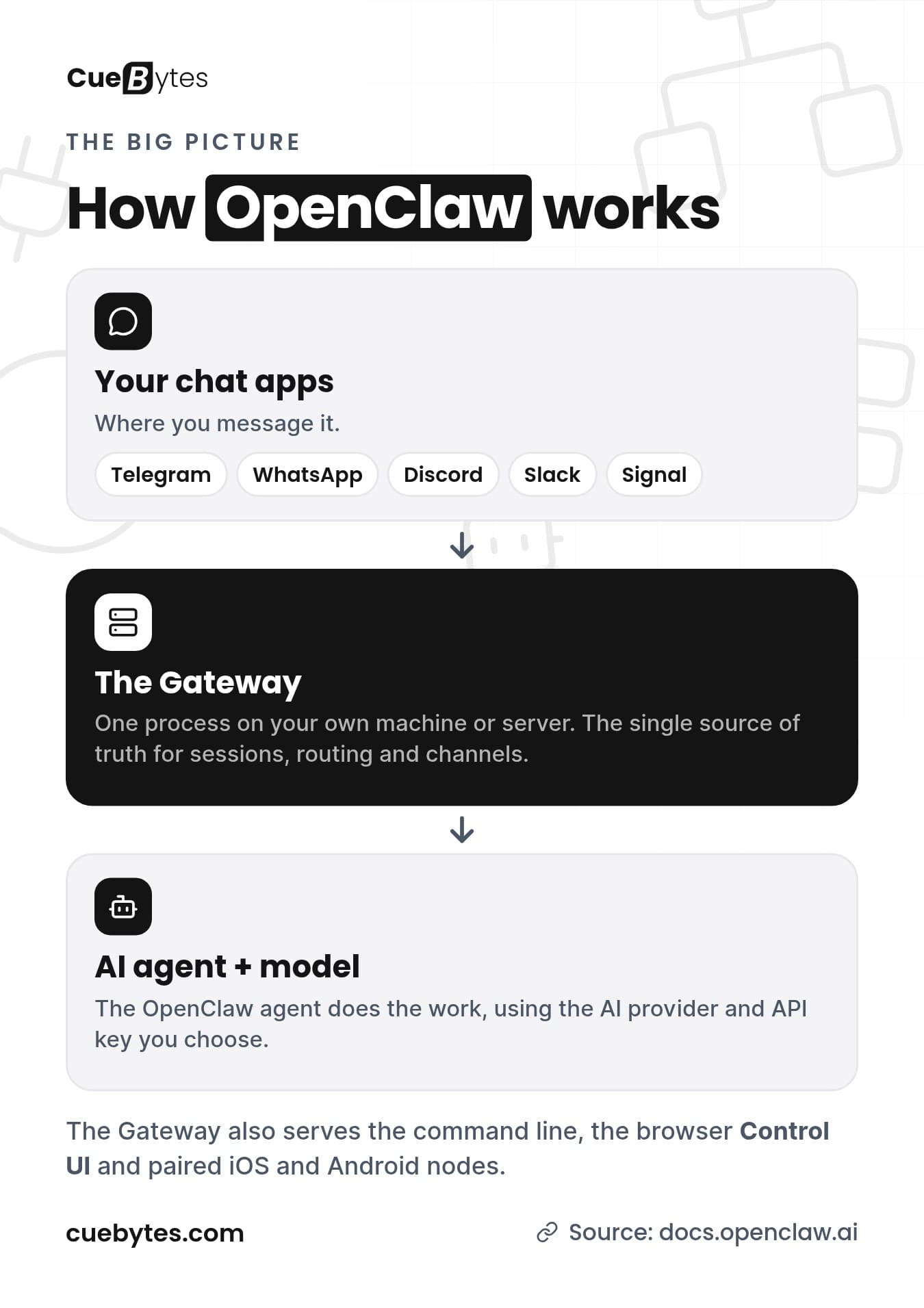
OpenClaw is a self-hosted gateway that connects your chat apps to AI agents. You run a single process, the Gateway, on your own machine or a server. It becomes the bridge between your messaging apps and an always-available assistant. The Gateway is the single source of truth for sessions, routing and channel connections.
It is open source under the MIT licence and developed by the OpenClaw Foundation, an independent 501(c)(3). There is no paid tier and no hosted service in the middle. You bring your own AI model provider.
What You Need
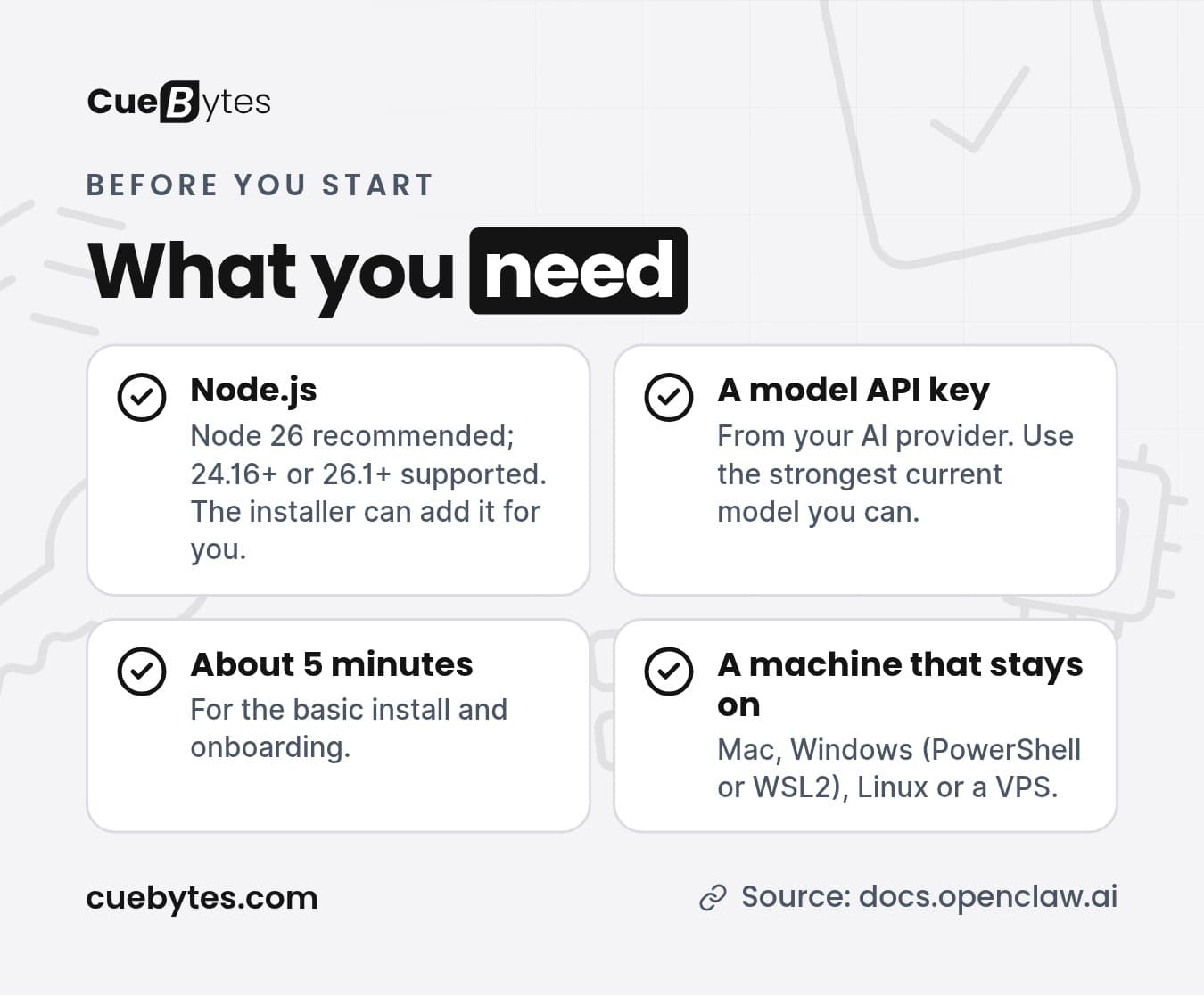
- Node.js: Node 26 is recommended. Node 24.16+ or Node 26.1+ are supported. The installer can install Node for you if it is missing.
- An API key from the AI model provider you want to use. The docs recommend the strongest latest-generation model you can use, for quality and security.
- About 5 minutes for the basic install.
- A machine to run it on: a Mac, a Windows PC (PowerShell or WSL2), a Linux box or a VPS. If you want it to answer around the clock, the machine has to stay on.
Step 1: Install OpenClaw
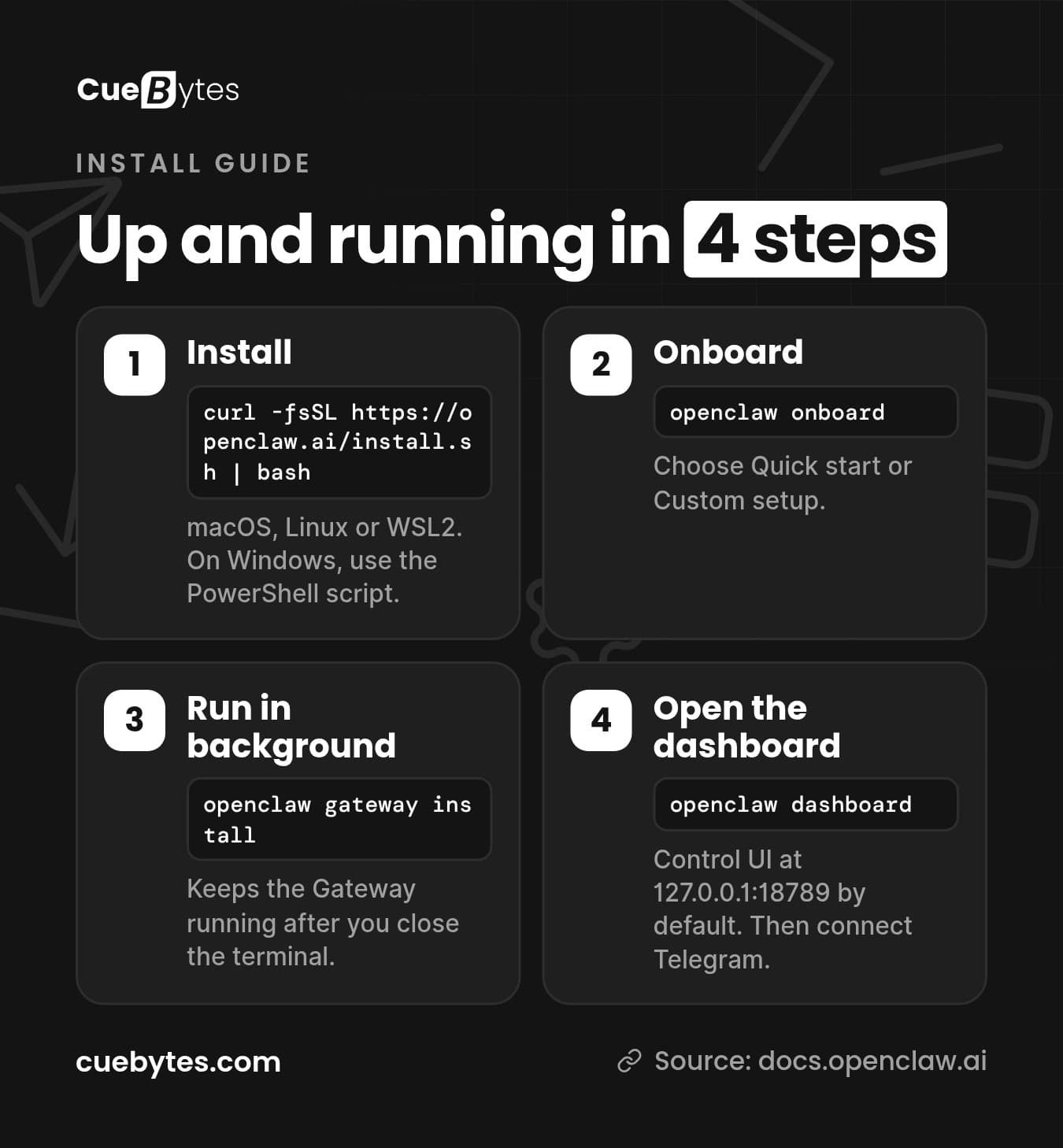
macOS, Linux or WSL2
curl -fsSL https://openclaw.ai/install.sh | bashWindows (PowerShell)
iwr -useb https://openclaw.ai/install.ps1 | iexThe installer detects your operating system, installs Node if needed, installs OpenClaw and then starts onboarding.
Other install methods
npm, pnpm, bun, Docker, Nix and from-source installs are also supported. They are covered on the Install page of the official docs. If you are not sure, use the install script above.
Step 2: Onboarding (Quick Start vs Custom Setup)
Onboarding runs automatically after install, or you can start it yourself with:
openclaw onboardIt offers two paths:
- Quick start reuses AI access it detects, verifies it with a real completion and opens the web dashboard with the Gateway running in the foreground.
- Custom setup walks you through the full guided flow.
If you prefer the classic step-by-step wizard, run:
openclaw onboard --classicStep 3: Run the Gateway in the Background and Open the Dashboard
Quick start leaves the Gateway running in the foreground, which means it stops when you close the terminal. Press Ctrl+C, then install it as a background service:
openclaw gateway installThen open the Control UI in your browser:
openclaw dashboardBy default the dashboard runs locally at http://127.0.0.1:18789/. Send it a message to confirm your model replies. For remote access, the docs cover web surfaces and Tailscale. Don't simply open the port to the internet (more on that below).
Step 4: Connect Telegram, Then Other Chat Apps
The docs suggest Telegram as the fastest channel to connect. Create a bot with Telegram's BotFather, add its token through the channel setup, then send your bot a test message from your phone.
Discord, Signal, WhatsApp, Slack, iMessage, Microsoft Teams and more are supported, some through channel plugins that install on demand. Each has its own page under Channels in the docs. Start with one channel, confirm it works, then add the next.
Who can message your bot? By default, DMs use pairing: unknown senders get a one-time code (valid for one hour) and are ignored until you approve them:
openclaw pairing approve <channel> <code>Groups default to an allowlist.
Where the Config Lives and How to Update
Configuration lives in ~/.openclaw/openclaw.json, and the agent workspace is in ~/.openclaw/workspace/. If you change nothing, DMs share the agent's main session and each group chat gets its own session. A good first lock-down step from the docs is restricting who can reach a channel, for example:
{
  channels: {
    whatsapp: {
      allowFrom: ["+15555550123"],
      groups: { "*": { requireMention: true } },
    },
  },
}
For updates, follow the update instructions on the official Install page, and re-test your channels after each update.
Security Settings to Check Before Going Live
An AI assistant that can run tools on your machine and is reachable from chat apps deserves a few minutes of hardening. From the official docs:
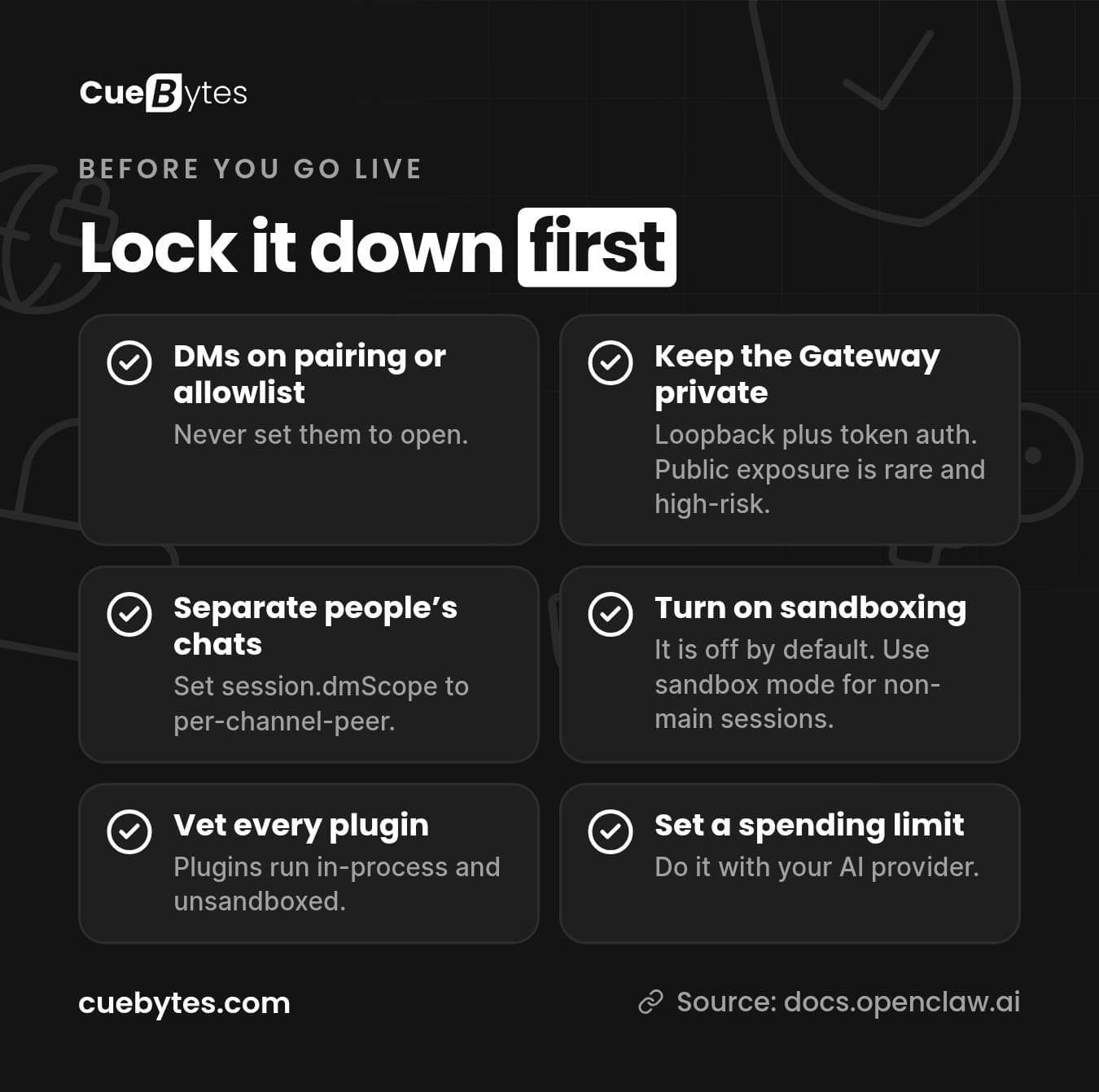
- Keep DMs on pairing or an allowlist. Never set them to open.
- Keep the Gateway private. Leave it bound to loopback with token auth (auth is on by default, even on loopback). The docs describe public internet exposure as rare and high-risk, requiring an identity-aware proxy, TLS, rate limits and strict allowlists.
- Separate people's chats. If several people use it, set
session.dmScope: "per-channel-peer". - Turn on sandboxing. Sandboxing is off by default. Use sandbox mode for non-main sessions and deny elevated or host exec for shared channels.
- Vet plugins. Plugins run in-process and unsandboxed, so install only ones you trust.
- Set a spending limit with your AI provider.
Troubleshooting
Wrong Node version
OpenClaw needs Node 24.16+ or 26.1+. Check with node -v. Re-running the install script lets it install a supported Node version for you.
The assistant stops when you close the terminal
The Gateway is still running in the foreground from Quick start. Run openclaw gateway install to install it as a background service.
Your bot ignores messages
With the default pairing policy, unknown senders are ignored until you approve their pairing code with openclaw pairing approve. Codes expire after an hour, so send a fresh message if yours has expired. In groups, check the allowlist and mention rules.
For anything else, the Help and Gateway & Ops sections of the docs cover diagnostics and common errors.
Prefer Not to Do It Yourself?
CueBytes sets up OpenClaw for you: installed on your Mac, PC or VPS, connected to your chat app and locked down using the settings above. Setup starts at USD 400–500. [SHAHID: confirm exact setup fee, what's included (channels, integrations, support period), hosting/managed care pricing and how ordering works] Your AI model usage and any server costs are paid directly by you. No sales call is needed.
Tell us about your setup through our enquiry form, or reply to any of our emails with your device (Mac, Windows or VPS) and the chat app you use. We also build AI automation and n8n workflows if you want your assistant connected to the rest of your business.
Frequently Asked Questions
Is OpenClaw free?
Yes. OpenClaw is open source under the MIT licence and has no paid tier. You still pay your AI model provider for usage, and for a server if you do not run it on your own computer.
Can I run OpenClaw on Windows?
Yes. You can install it from PowerShell with the official install script, or use WSL2 and the Linux installer.
Should I use a Mac mini or a VPS?
Either works. Your own Mac or PC is free but must stay switched on for the assistant to answer. A small VPS keeps it online 24/7 without tying up a machine at home.
Does OpenClaw need to stay on 24/7?
Only if you want it to answer at any time. The Gateway is the process that receives your messages, so if the machine is off or asleep, your assistant is offline.
Is OpenClaw safe?
It can be, if you configure it carefully. Gateway auth is on by default and DMs default to pairing, but sandboxing is off by default and plugins run unsandboxed. Lock down who can message it, keep the Gateway private and only install plugins you trust.
Should I pick OpenClaw or Hermes Agent?
OpenClaw has the widest choice of chat apps and is a Node/TypeScript project. Hermes Agent from Nous Research is a Python project focused on memory and self-improving skills. Our OpenClaw vs Hermes Agent comparison covers the trade-offs in detail.
Still deciding? Read OpenClaw vs Hermes Agent or how to set up Hermes Agent. For the bigger picture, see our best AI agent tools for 2026.
— CueBytes LLC
Sources: docs.openclaw.ai (overview, install, onboarding, access control, exposure runbook). OpenClaw is a trademark of its respective owner. CueBytes is not affiliated with the OpenClaw project.
Ready to Get Started?
Turn this knowledge into action. Let CueBytes help you build it.
Get OpenClaw Set Up for You →